The Short Answer
If Android says Alight Motion was not installed, do not uninstall your existing copy first. Read the exact message, confirm whether the failure came from Google Play or a downloaded APK, check free storage and device compatibility, and retry from a complete trusted download. If an existing installation uses a different signing certificate, Android will not treat the new APK as a valid update.
The error identifies the next branch of the diagnosis. A pending Play Store download points to connection, storage, system, or store issues. A parsing message points to an unreadable or incompatible package. An update conflict usually points to the same package name being signed differently. None of these diagnoses proves that an uninspected APK is safe or compatible.
Match the Symptom to a Likely Cause
Use the message shown by Android or Google Play instead of trying unrelated fixes in random order.
| Symptom | Likely cause | Best first action |
|---|---|---|
| Play Store download stays pending | Connection, low storage, incorrect time, or a temporary Play Store problem | Check the network and storage, then close and reopen Play Store |
| This app is not available for your device | Android version, hardware, certification, region, or publisher compatibility rule | Check the official listing and Alight Motion minimum requirements |
| App not installed when updating an existing copy | Package/signature conflict or an incompatible downgrade | Keep the existing app, back up projects, and identify both package sources |
| There was a problem parsing the package | Incomplete, damaged, invalid, or incompatible APK | Delete only the failed download and obtain a complete package from a trusted source |
| Not enough space | Insufficient working storage for download, staging, and installation | Free storage without clearing Alight Motion data |
| Play Protect warning or block | Android detected or could not verify a risk condition | Keep Play Protect enabled and use the official Play Store release when possible |
Play Store Installation Problems
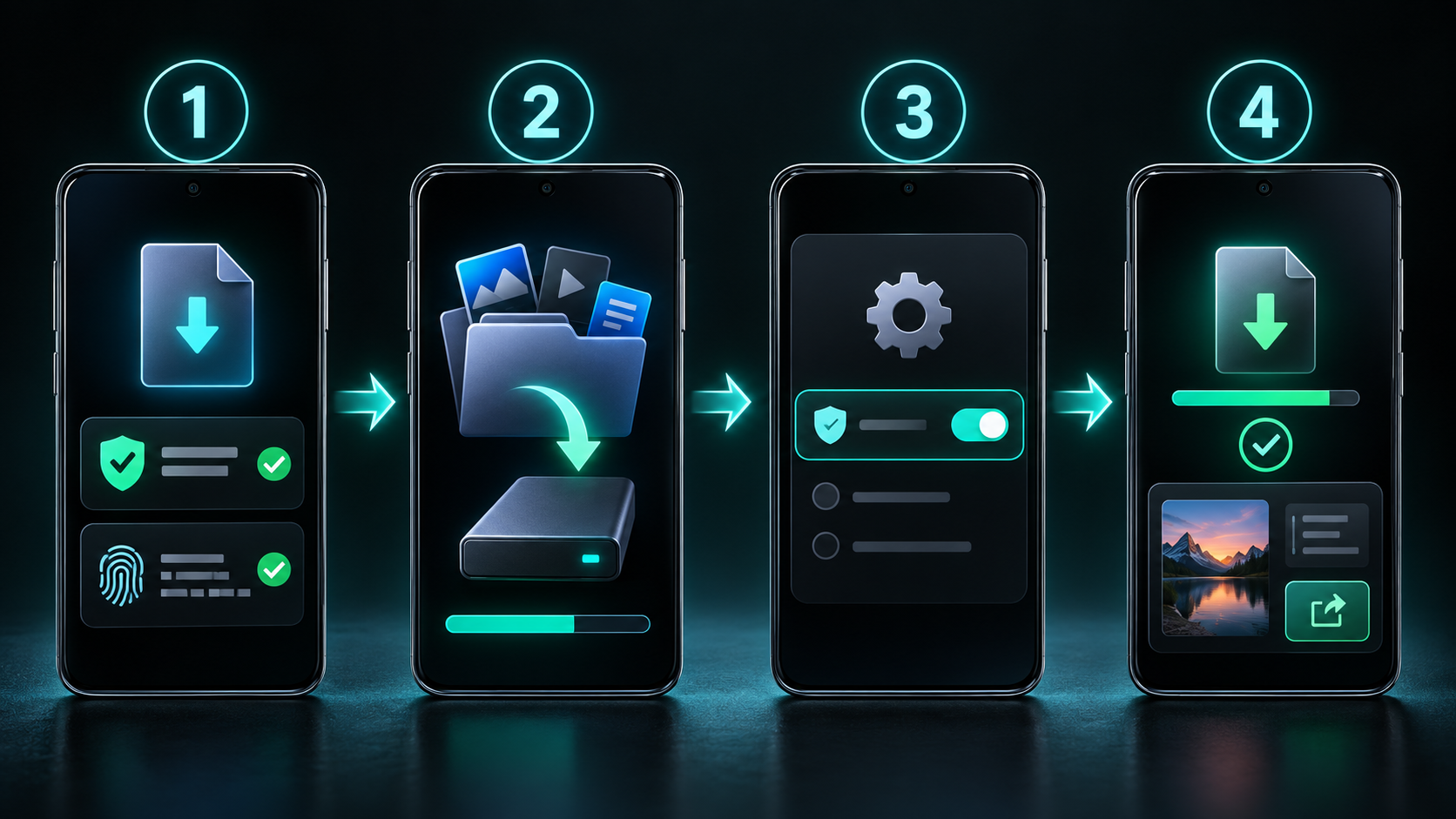
When Alight Motion is not installing from Google Play, start with Google’s basic sequence: confirm a stable connection, check free storage, install available Android system updates, close and reopen the Play Store, restart the device, and verify automatic date and time. These checks preserve the installed app and its local data.
If only Alight Motion fails, open its Play Store page and check whether Google marks it as available for that device. The official Alight Motion requirements also call for Android 6.0 or newer, at least 1.5 GB of RAM, a supported or reasonably compatible chipset, and Play Protect certification. Android 7.0 or newer and more than 2 GB of RAM are recommendations for performance, not different minimum installation rules.
A missing or unavailable listing is not fixed by disabling Play Protect. Device certification is separate from the Play Protect scanner, and Google explicitly says turning the scanner off does not repair an uncertified device.
APK Installation Problems
An APK installation has more failure points than a Play Store install because the browser or file manager must finish the download, Android must be allowed to open packages from that specific source, and the package must be structurally valid, compatible, and correctly signed. Settings labels vary by Android version and phone maker.
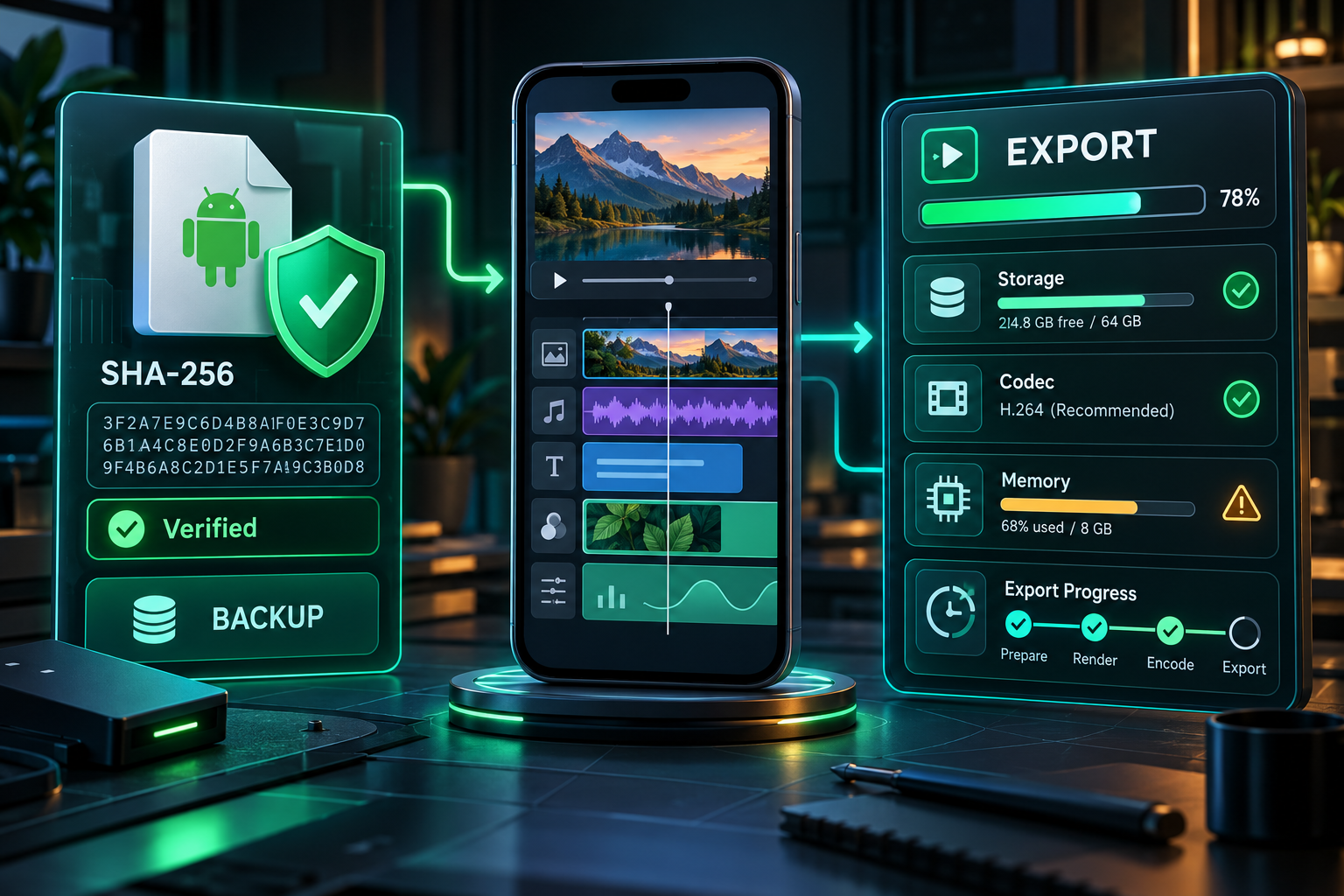
Before retrying, confirm the file name and size are stable, compare any publisher-provided checksum with a checksum calculated from the downloaded file, and scan the exact file with security tools you trust. A matching checksum only confirms file identity; it does not prove safety, authenticity, premium access, or compatibility.
The site’s download record publishes configured metadata for its hosted file, but this project has not independently inspected the APK binary. Treat its architecture, signing certificate, actual minimum SDK, and behavior as unknown until the exact file is examined.
Check the download record
Review the published version, size, package, checksum, and explicit verification limits before using the hosted link.
Open the file record →Considering an older build?
Read the compatibility and downgrade risks before replacing a working installation.
Read the old-version guide →Unsupported Android Version or Architecture
Alight Motion’s official support page lists Android 6.0 or higher as the minimum and Android 7.0 or higher as recommended. Android 5.x and older are not supported. A phone can still be partially compatible because chipset support, graphics drivers, certification, and manufacturer software also matter.
Architecture is a separate question. Android packages that contain native code can include libraries for ABIs such as arm64-v8a, armeabi-v7a, x86, or x86_64. Android’s package manager looks for libraries matching a device-supported ABI. If a downloaded split or APK does not contain what the device needs, installation may fail or the app may fail at launch.
Do not infer architecture from the file name. Check the exact package with an APK inspection tool or obtain the correct build from the publisher. The hosted file’s architecture is not published in the current site record, so this guide does not claim that it supports every Android device.
Insufficient Storage
Android needs room for more than the final app size. It may require space for the download, a staged installation, extracted native libraries, temporary files, and future project media. Google notes that app downloads and installs can stop when a device is low on space and flags less than 1 GB available as a common warning sign.
Use Android Settings to review storage. Remove disposable downloads, exported duplicates, or other files you have already backed up. Do not choose Clear storage or Clear data for Alight Motion as a routine space-saving step: projects are stored locally and may not be recoverable.
Incomplete or Damaged Downloads
A browser interruption, an expired download response, a storage error, or a modified file can leave an APK that Android cannot read. This commonly presents as an Alight Motion installation failed message or a parsing error before the installer reaches the normal confirmation screen.
Delete only the failed download, verify the connection and available storage, and download one fresh copy from a source you deliberately chose. Do not rename a ZIP, XAPK, APKM, or split-package bundle to .apk; the extension does not convert its structure. If the source provides a checksum, calculate the same algorithm on the finished file and compare every character.
Existing-Package and Signature Conflicts
Android identifies an app by its package name and verifies updates with signing certificates. Android’s developer documentation says an update is accepted when the certificate matches the installed version. A modified APK, a copy from another distributor, and the official Play Store app may share a package name but use different certificates; that creates one of the most common Alight Motion package conflicts.
Do not immediately uninstall the working copy. First confirm that projects are backed up, record which source installed the current app, and decide whether you are intentionally changing distribution channels. Removing the existing app may make a differently signed package install, but it can also permanently remove local projects and elements and does not prove the replacement is trustworthy.
A lower version code can also be rejected as a downgrade. If the goal is compatibility with an older release, use the old-version guide to understand the project and security trade-offs before changing versions.
Alight Motion Parsing Errors
An Alight Motion parsing error means Android could not read or accept the package far enough to start a normal installation. Common possibilities include an incomplete file, invalid APK structure, an APK built for a newer Android API, an unsuitable split package, or corruption during download or transfer.
Start by checking the Android version, file type, completed file size, and checksum. Download a fresh copy rather than repeatedly opening the same broken file. If the message appears only after moving the file through another app or storage device, compare the copied file’s checksum with the original. If a fresh compatible package still fails, stop and use the official distribution or contact the package publisher.
Back Up Before Removing an Existing Installation
Alight Motion’s official Help Center says projects are saved on the device rather than in the account. Signing in does not back them up. Deleting or reinstalling the app deletes local projects and elements, and official support cannot recover work that was never backed up.
For each important project, open it, choose Export, select Project Package, complete the upload, and store the resulting link and QR code somewhere independent of the phone. Keep original media, fonts, and other external assets too. Open at least one backup link and confirm that it is accessible before considering an uninstall.
A rendered MP4 is useful as a reference but is not an editable project backup. Clearing cache and clearing app data are also different actions; do not clear data while troubleshooting installation.
Ordered Troubleshooting Checklist
Capture the exact message
Note whether the error came from Play Store, Package Installer, Play Protect, or the app itself. Take a screenshot for your records.
Protect the current installation
If Alight Motion already opens, export important projects as Project Packages before any uninstall, downgrade, or data-clearing action.
Check Android and device eligibility
Confirm Android 6.0 or newer, available Play Store compatibility, Play Protect certification, and realistic RAM and chipset support.
Check connection, time, updates, and storage
For Play Store problems, follow Google’s basic checks before changing app data or account settings.
Identify the package source
Know whether you are installing the official Play Store release or an APK, and whether another copy with the same package name is already installed.
Validate the completed APK
Confirm the format, file size, and checksum when one is published. Replace an incomplete or damaged download with one fresh copy.
Interpret conflicts correctly
An update failure over an existing copy can indicate a signing-certificate or version-code mismatch, not a storage problem.
Keep device protections enabled
Review Play Protect warnings and prefer the official Play Store build. Do not disable protection as a generic fix.
Escalate with useful details
Provide the device model, Android version, exact app source, exact error text, free storage, and the steps already tried.
When Alight Motion Still Will Not Install
If the official Play Store page says the app is unavailable, check Alight Motion’s current minimum requirements and Google Play device certification. For a certified compatible device where only this app fails, use Google Play’s one-app troubleshooting flow and contact the official Android support address shown on the Play listing.
For an APK-specific failure, contact the publisher or distributor of that exact package. Include the full error message and checksum, but do not send account passwords, payment details, private projects, or unrelated personal files. Alight Motion states that its official support applies to authentic versions from Google Play or the Apple App Store.
If the package source, certificate, architecture, or integrity cannot be established, the practical resolution is to stop retrying that file and install the official Play Store version on a supported device.
Frequently Asked Questions
Why does Android say Alight Motion app not installed?
Why is Alight Motion not installing from Google Play?
How do I fix Alight Motion APK not installed without losing projects?
Can two Alight Motion APKs with different signatures update each other?
What causes an Alight Motion parsing error?
Should I turn off Play Protect to install Alight Motion?
Will signing in restore projects after reinstalling Alight Motion?
Primary Sources
Core product facts on this page were checked against the following official or developer-controlled sources. Availability and requirements can change after publication.
- Official Alight Motion minimum installation requirements
- Official Alight Motion listing on Google Play
- Official Alight Motion Project Package backup guide
- Official Alight Motion project recovery guidance
- Google Play basic download and installation troubleshooting
- Google Play troubleshooting for one app
- Google Play Protect safety guidance
- Google Play Protect certification guidance
- Android Developers app-signing documentation
- Android Developers ABI documentation
Related Pages
APK Download Record
Check the published file metadata and its verification limits.
Read page →Old Versions
Review compatibility, downgrade, and project-safety trade-offs.
Read page →Fix Export Problems
Troubleshoot an installed app that fails during export.
Read page →